 Lifebase
Your knowledge. A workspace shared with your AI.
A personal knowledge base in Obsidian with 16 purpose-built agent skills. Connect your notes, plan your days, and automate routine upkeep with your AI.
Your Markdown files. Your choice of AI agent.
update the project from this
Skill appliedlifebase
 AI response
I moved the launch from September 18 to 21 and separated billing from this release. Signup now asks only for workspace name, email, and password. Phone is removed, and company size will be collected later.
Your screen and copy-review tasks were already there, so I updated the project and added Nina’s validation check for the 10th. The notes do not say where to ask for company size later, so I left that decision open.
Make your AI a personal assistant.
Lifebase helps your AI find your preferences, project history, and past decisions, then use them to plan, research, and write. The results go back into your notes for next time.
Plan around your actual day.
Bring appointments, unfinished tasks, and established routines into one daily plan. Keep the schedule in your journal.
Journal/Tasks/Build your own LLM wiki.
Turn research into linked knowledge notes. Ask your AI to read what is already there, add new findings with sources, and revisit earlier conclusions.
Knowledge/Ideas/Pick up where you left off.
Ask your AI to review past decisions and remaining tasks before continuing a project. Save the new work in the same project note.
Tasks/_Profile/

See your daily schedule as a timeline.
Day Planner Enhanced shows your daily journal’s schedule as a timeline in Obsidian, with each event’s subtasks and notes.
Built by Lifebase’s creator. Included and configured in your vault.
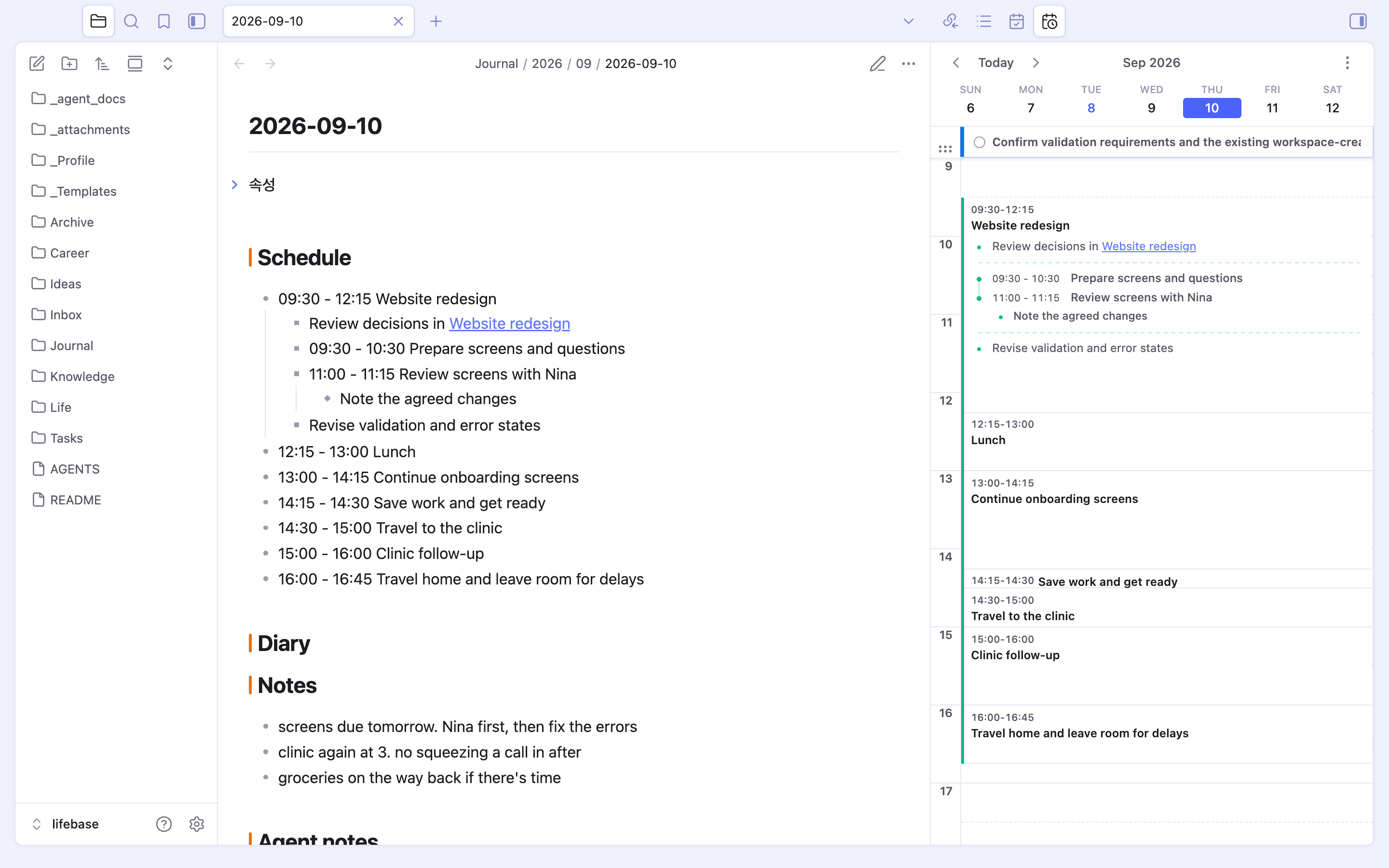
Plan with your AI, then review and adjust the schedule in Obsidian.
Explore the timelineCaptured in Obsidian with example records. Your content and layout are yours to customize.
Build your own graph.
Link a project to the research behind it, or a new idea to an earlier note. Your graph shows how those connections grow as you keep writing.
Your records live in an Obsidian vault. Lifebase gives them a shared structure so you and your AI can keep building on them.
How notes connectInstall Lifebase and connect your AI
Enter your license key in the installer, connect your AI agent, and ask it to guide you through the initial setup.
Read the installation guideInstall the workspace
Choose a folder, language, and an available release.
npm install -g @lifebase/cli
lifebase
Connect your AI agent
The installer offers setup for supported tools. Your agent and its model account are separate.
Run your first session
Open the vault in Obsidian, start your agent in that folder, and begin onboarding.
Get help with setup and everyday use.
Follow the guide yourself, or book help with installation, everyday use and mobile assistant setup.